 Previzion
Screen by screen
The Scene page and the 3D view
At the Scene step you look around the scene the AI built in 3D and fix it yourself.
Layout
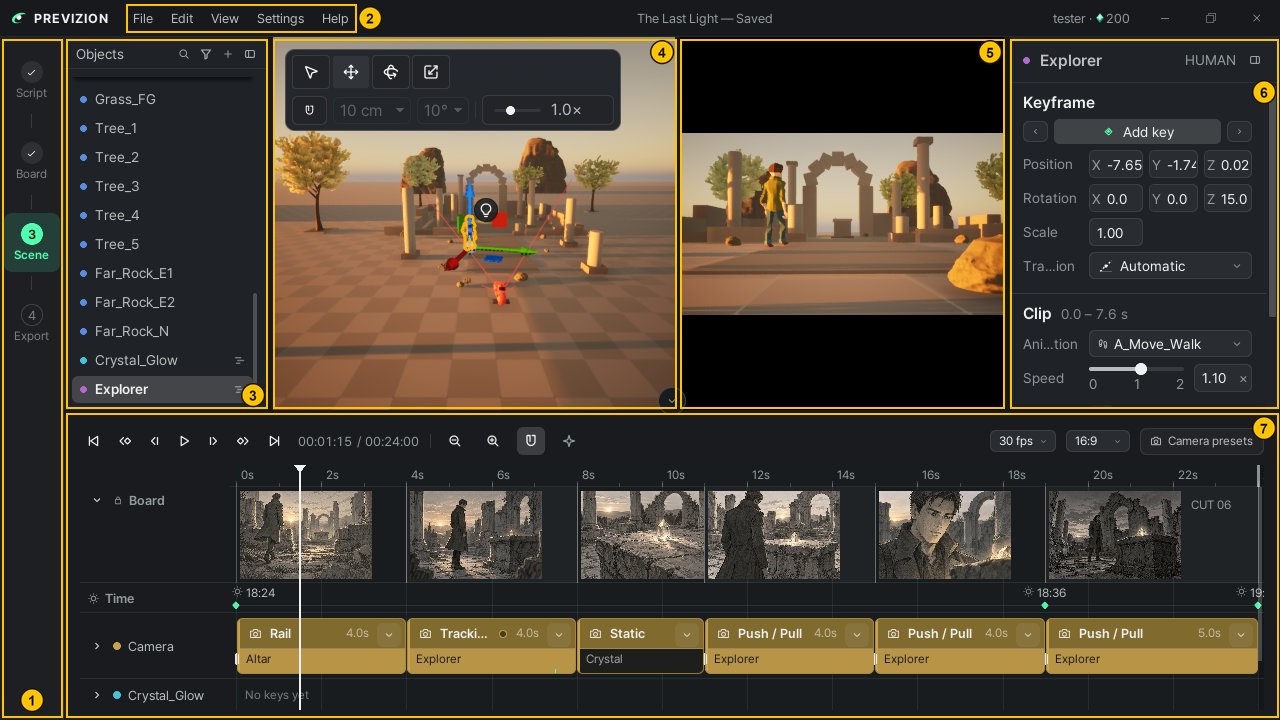
| # | Name | What it does |
|---|---|---|
| ① | Step bar | Moves between the Script · Board · Scene · Export steps |
| ② | Menus | Commands such as saving and settings. On a Mac they are in the menu bar at the top of the screen → All menus |
| ③ | Objects | Find and select the people and things in the scene → People · objects · vehicles |
| ④ | Viewport | Look around the scene in 3D and move people and things |
| ⑤ | Preview | See the camera's view as it will appear in the finished movie |
| ⑥ | Details | Change the settings of the selected camera, person or thing |
| ⑦ | Timeline | Arrange movement and cameras in time → Timeline |
Looking around the 3D view
To look at the scene from different angles, use these controls over the viewport.
| To | Do this |
|---|---|
| Walk around | Hold the right mouse button and press W A S D; E / Q to go up and down |
| Change how fast you move | Hold the right button and turn the wheel. Shift for a burst of speed |
| Orbit around a point | Hold Alt (Option on a Mac) and drag with the left button |
| Pan sideways / move closer | Drag with the wheel held down / turn the wheel |
| Jump to the selection | F |
Moving, rotating and scaling
To move, turn or resize a person or thing, pick a tool at the top left of the viewport and drag its handles.
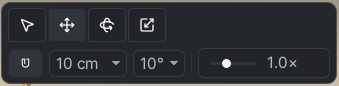
- Move (W) · Rotate (E) · Scale (R). Scale changes width, depth and height in the same proportion.
- To move in fixed steps, turn on Snap to the grid.
- To drop the selection onto the surface below it, press End.
Hiding panels and changing the layout
To see the viewport or the preview larger, hide the other panels or resize them.
- Hide Objects and Details with the hide button in their header, and Timeline with the round button at its top center. To bring a panel back, press the button left in its place. The panel names in the View menu (Shift+1–Shift+5) do the same.
- Drag the border between panels to resize them. To return to the original layout, press View → Reset layout.
- To fill the whole screen with the app window, press F11 (View → Full screen).
Related: Timeline · Cameras · People · objects · vehicles · Shortcuts
Anything not covered here: ask in the open chat or write to 17iayn@gmail.com.