 Previzion
People · objects · vehicles
Put people, vehicles and things into the scene, place them, and make them drive or walk. You pick what to add in the Object Drawer and drag it into the 3D view.
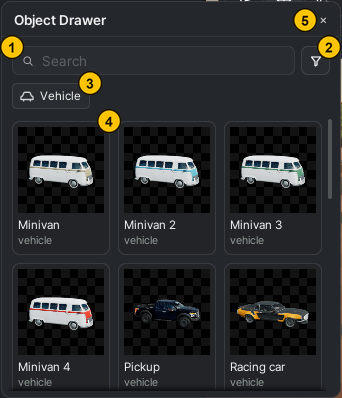
| # | Name | What it does |
|---|---|---|
| ① | Search | Finds things by name (for example bus, tree) |
| ② | Filter button | Narrows the list by kind, such as Human · Vehicle · Prop |
| ③ | Filter row | Shows only the kinds you turned on. Press one to turn it on or off |
| ④ | Tile | Drag it into the 3D view to add it to the scene |
| ⑤ | Close (Esc) | Closes the drawer |
Adding things
To add people, cars, buildings or props to the scene, pick them in the drawer and drag them in.
- Press + at the top of the Objects panel to open the Object Drawer.
- Search, or narrow the kinds with the filter.
- Drag the tile you want into the 3D view. Clicking does not add it.
Lights and effects are in the same drawer under Light · Effects → Lights · effects · time of day. A Marker is a point that does not show in the movie; put one where a camera should look.
Moving · rotating · resizing
Click what you placed to select it, then drag with the Move (W) · Rotate (E) · Scale (R) tools to set its place and size. To set exact numbers, type values in the Position · Rotation · Scale boxes in Details on the right. The tools and snapping are covered in The Scene page and the 3D view.
Making it move
To make a car drive or a person walk, mark where it is at each moment with keys. Between keys the app moves it smoothly.
- Press + Add to Timeline in Details. A row for it appears on the timeline.
- Put the playhead at the starting moment and press Add key in the Keyframe section of Details.
- Move the playhead to the next moment and change the position with Move (W) or Rotate (E). A key appears at that moment by itself.
- Repeat step 3 as often as you need.
With only one key, it stands still in that spot. To make it start or stop slowly, change the key's Transition → Timeline
Changing what a person does
A person's actions, such as walking and then stopping, or sitting, are set with clips.
- Select a person who is on the timeline and a Clip section appears in Details. Pick the Animation for the moment the playhead is at from the list.
- To string actions together, unfold the person's row on the timeline, press + Add clip on the Animation row, and drag the clips to set their time and length.
- To play an action once instead of repeating it, turn on Play once.
Riding something
Put a person on a bus and the person moves with the bus. Attaching a thing to a car or a person works the same way.
- Put the person or thing that rides on the timeline.
- Put the playhead at the moment they get on.
- Press Add → Ride on… beside Attachments in Details and pick what to ride. You can also board them from the bus's side with Add rider….
- They travel together from the playhead to the end of the scene.
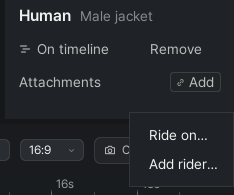
The ride shows on the timeline as a bar such as On City bus 1. Drag the end of the bar to set when they get off, and press the bar to change where they sit under Seat in Details.
Shaping roads
After placing a Road from the drawer, change the road's shape and lanes to fit the scene.
- Select the road and a center line with points appears in the 3D view. Drag the points to bend the road.
- Press the small mark between two points to add a point; select a point and press Delete to remove it.
- In the Road section of Details, choose Lanes · Center line · Sidewalk · Street lights · Trees.
The object list
In the Objects panel on the left, find what is in the scene by name and select it. Pressing it in the list selects it in the 3D view too. Right-click a row for rename (F2) · duplicate · delete and Ask AI; Remove from Timeline takes its movement off and leaves it where it stands now.
Related: Timeline · Lights · effects · time of day · Fixing with AI · Examples
Anything not covered here: ask in the open chat or write to 17iayn@gmail.com.