 Previzion
Cameras
Cameras decide the framing and the movement the scene is shot with. Cameras sit as blocks on the timeline's Camera row, and one block is the stretch one camera shoots.

| # | Name | What it does |
|---|---|---|
| ① | Camera block | Press it to edit it in Details |
| ② | Subject name | Press it to change what the camera frames |
| ③ | Custom · N | How many items you changed by hand (Overrides) |
| ④ | No camera · black | A stretch that comes out black in the movie |
| ⑤ | Detail rows | Show the keys of values such as distance, aim and shake over time. Each block shows different rows |
Adding a camera
- Select what you want to shoot in the viewport or the Objects list.
- Open Camera presets at the right of the timeline toolbar.
- Drag the move you want onto the Camera row. Clicking does not add it.
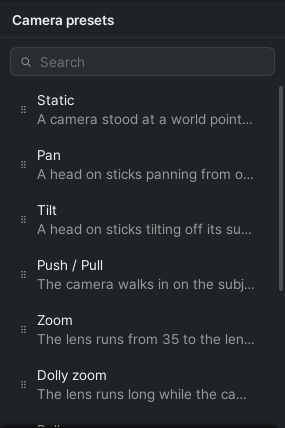
If you only need a camera that stays still, hover over an empty stretch and press Add camera.
Drop it with nothing selected and it takes over the subject of the last camera on the row.
Choosing a move
Pick the preset that matches the move you want. To change a block you already placed, use Change… at the top of the Card tab in Details.
| Preset | Move |
|---|---|
| Static | Stays in one place |
| Pan | Turns on a tripod to move over to another subject |
| Tilt | Tilts on a tripod, moving off the subject |
| Push / Pull | Moves in on the subject |
| Zoom | Pulls in with the lens alone, from where it stands |
| Dolly zoom | Moves back while zooming in, so the subject stays the same size |
| Roll | Twists around the line of sight |
| Tracking | Travels along with a moving subject |
| Arc | Circles around the subject |
| Boom | Rises high on a crane |
| Rail | A dolly that passes by once over the shot |
Editing in the Card tab
To change the framing or how big the move is, press the camera block and change the values in the Card tab of Details. This is enough most of the time.
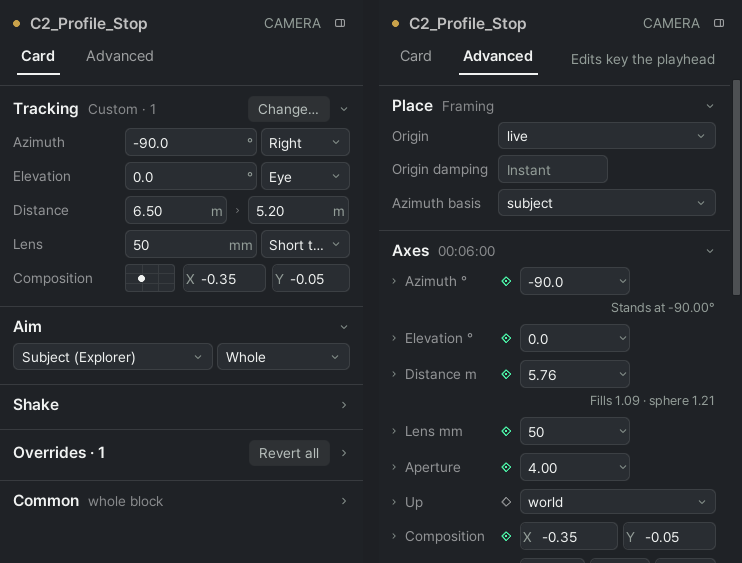
- The move's start values go into the block's first key and its end values into the last key. Under Aim, pick what the camera looks at.
- Items you changed by hand so they differ from the card gather under Overrides. Press Revert on an item, or Revert all for every one, to go back to the card.
The values in the Card tab apply to the whole block, wherever the playhead is. Select several blocks and they all change at once.
Changing over time in the Advanced tab
To change the distance, lens or what the camera looks at over time within one block, use the Advanced tab.
- Put the playhead inside the block, at the moment you want to change.
- Change a value, or press the ◆ beside it, and a key goes in at that moment. Add something to look at with + Aim at playhead.
To change how the camera itself is mounted, as with Boom or Rail, use Change rig.
Moving the camera in the viewport
To place the camera by eye, select the camera block, put the playhead at that moment, and drag the Move (W) or Rotate (E) handles in the viewport. The changed values go in as a key at that moment. If the view lines in front of the camera model get in the way, turn off Settings → Camera frustums.
Adding shake
For a handheld feel or the jolt of something like an explosion, add a shake.
| Group | Kinds |
|---|---|
| Support · whole shot | Drift (slight sway) · Steadicam (floating) · Handheld · Handheld walk · Handheld run (held standing, walking, running) · Telephoto (long lens) · Vehicle (car) · Aerial (helicopter, drone) · Boat |
| Event · once | Impact · Explosion · Quake |
- For a support shake, pick the kind in the Shake group of the Card tab and set its Intensity and Speed.
- For an event shake, put the playhead at the moment of the jolt and press + Event at playhead.
Related: Timeline · The Scene page and the 3D view · Fixing with AI
Anything not covered here: ask in the open chat or write to 17iayn@gmail.com.