 Previzion
Board
On this page you fix the cut pictures the AI drew until you like them, then build the 3D scene from those cuts.
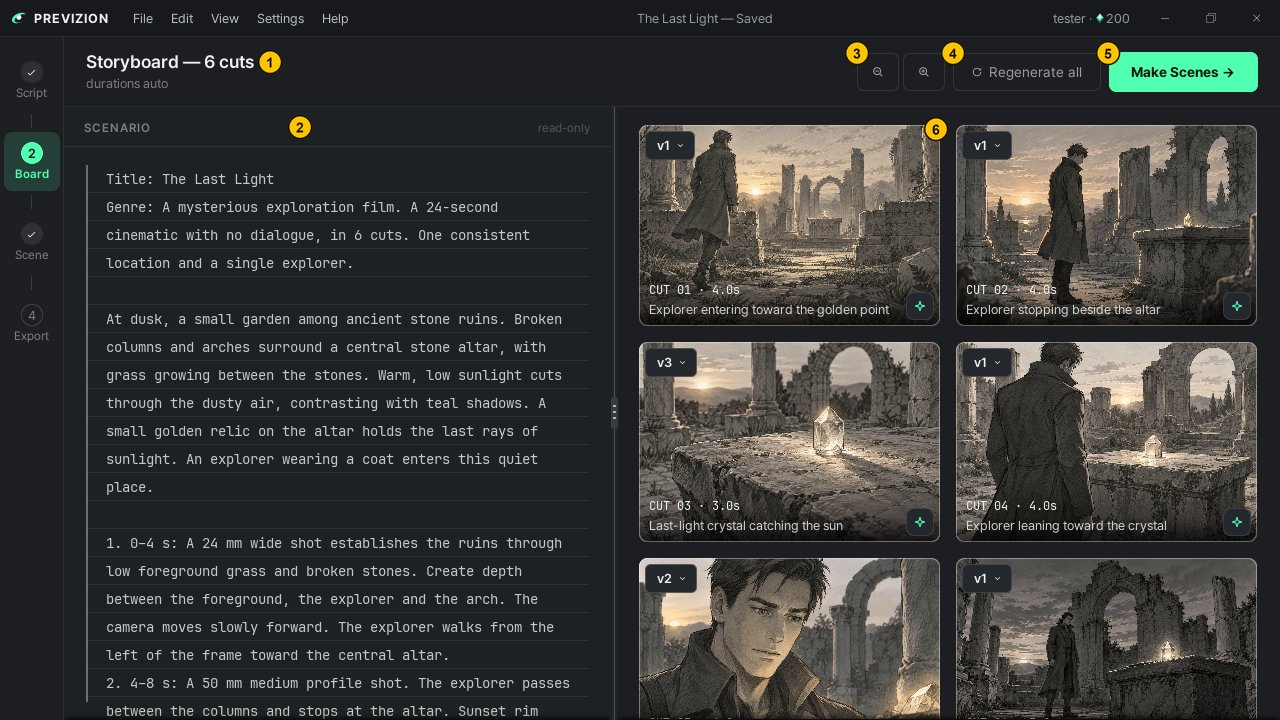
| # | Area | What it does |
|---|---|---|
| ① | Title and status line | Shows the number of cuts, the total length and whether it is still drawing |
| ② | Scenario | The script this storyboard was drawn from. It cannot be edited here |
| ③ | Zoom out · zoom in buttons | Change the size of the cards |
| ④ | Regenerate all | Redraws the whole storyboard |
| ⑤ | Make Scenes → | Builds the 3D scene from the cuts |
| ⑥ | Cut card | View the picture large, pick a version, and redraw it with ✦ |
Viewing a cut large
Press the picture on a card to see it large. Use ← → to move to the neighboring cut, and Esc or a click outside to close it.
Redrawing one cut
Pick just the cuts you don't like, describe what to change, and have them redrawn.
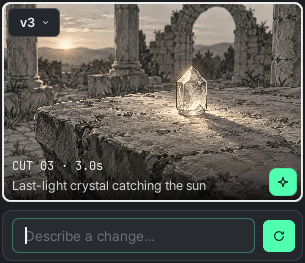
- Press ✦ at the bottom right of the card.
- In the field under the card, describe what you want changed and press Enter.
- When it is drawn, the new version goes into the card.
You can send several cuts one after another. There is no need to wait for one to finish.
Picking a version
If a redrawn picture is worse than the old one, you can go back. Press the version chip at the top left of the card (v1, v2 …) and pick a version. Building the scene also uses the version you picked.
Redrawing everything
Regenerate all redraws the whole storyboard from the same script. The current cuts and their versions are replaced by the new storyboard. To redraw from a changed script, edit it on the Script page and press Generate Storyboard.
Building the 3D scene
When you like the pictures, the AI builds a 3D scene from the cuts. This is what spends the most Viz.
- Press Make Scenes → at the top right.
- The app moves to the Scene page. You cannot edit by hand while the AI builds the scene, so wait for it to finish.
- When it is done, refine it on the Scene page. Cut names and lengths are edited there too, on the timeline. → Timeline
If you have already edited the scene, making it again replaces the object layout, the cameras and the timeline, and cannot be undone. The storyboard pictures stay as they are.
Related: Script · The Scene page and the 3D view · Fixing with AI · Viz · saving · what is sent
Anything not covered here: ask in the open chat or write to 17iayn@gmail.com.