 Previzion
Getting started
Install and sign in
Install the app you got from the download page, then sign in with your Google account in your browser. The beta builds are not yet certified by Apple or Microsoft, so the first launch shows a security warning once. This is what to press.
Installing
Windows
- Unzip the file you downloaded.
- Double-click
Previzion.exeinside the folder. It does not run on its own, so leave it in the folder with the rest. - If a blue security warning (Windows protected your PC) appears, press More info → Run anyway.
You need a graphics card that supports DirectX 11 or later.
Mac
- Open the
.dmgfile you downloaded. - Move
Previzion.appto the Applications folder. - Double-click the app.
- If it will not open, go to System Settings → Privacy & Security, scroll to Security and press Open Anyway next to Previzion. After you confirm with your password once, it opens normally.
Intel Macs are not supported.
Use it while connected to the internet. If it will not launch or an error window appears, see When something goes wrong.
Signing in
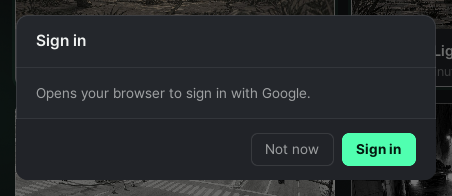
- The first time you run the app, a Sign in card appears.
- Press Sign in. Your browser opens; sign in there with your Google account or the invite code you were given.
- When the browser tells you to return to the app, go back to it. You can close that tab.
- Once you are signed in, your account name and remaining Viz show at the top right of the app window. For example,
tester · 200means the tester account has 200 Viz left. - You can close the card with Not now. It comes back when you use something that needs an account, such as making a storyboard or scene, an AI request or an upload.
- To switch accounts, sign out with File → Sign out, then sign in again.
Related: Previzion at a glance · Managing projects · When something goes wrong
Anything not covered here: ask in the open chat or write to 17iayn@gmail.com.