 Previzion
Screen by screen
Script
On this page you write the script, set the number and length of the cuts, and ask the AI to draw the storyboard.
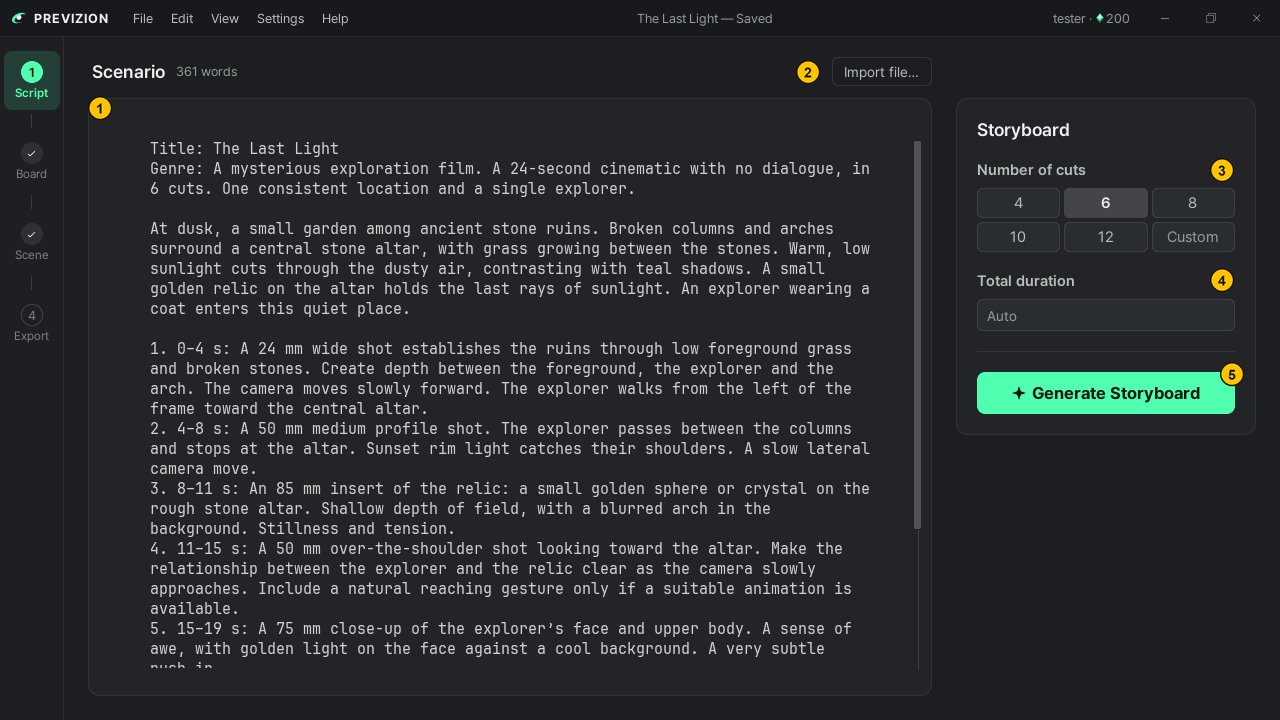
| # | Area | What it does |
|---|---|---|
| ① | Scenario box | Where you write the script |
| ② | Import file… | Loads a script you wrote in a text file |
| ③ | Number of cuts | How many pictures the storyboard is split into |
| ④ | Total duration | The length of the whole movie, in seconds |
| ⑤ | Generate Storyboard | Hands the cut pictures to the AI |
Writing the script
Write the script in the Scenario box. A few sentences describing the scene are enough. If you already have it in a file, load it with Import file…; the text in the box is replaced by the file's.
Setting the cuts and the length
- Number of cuts: press 4 · 6 · 8 · 10 · 12, or type your own with Custom. It starts at 8.
- Total duration: in seconds. Leave it empty and the AI sets the length of each cut.
Making the storyboard
- Check the script and the settings, then press Generate Storyboard.
- The app moves to the Board page. Wait until every picture has arrived.
- Once they have, refine them on the Board page.
If there is already a storyboard, making it again replaces it with a new one. This spends Viz. → Viz · saving · what is sent
When it fails
The Board page shows the reason and Retry. If a remake failed, the original cuts are still there. If it failed because you are out of Viz, Retry does not appear.
Related: Board · Viz · saving · what is sent · Managing projects
Anything not covered here: ask in the open chat or write to 17iayn@gmail.com.