 Previzion
Managing projects
You make and open projects on the main screen that appears when the app starts. An open project can be saved, taken back to an autosave, and passed around as a single .pvz file.
On a Mac, use ⌘ where this page says Ctrl.
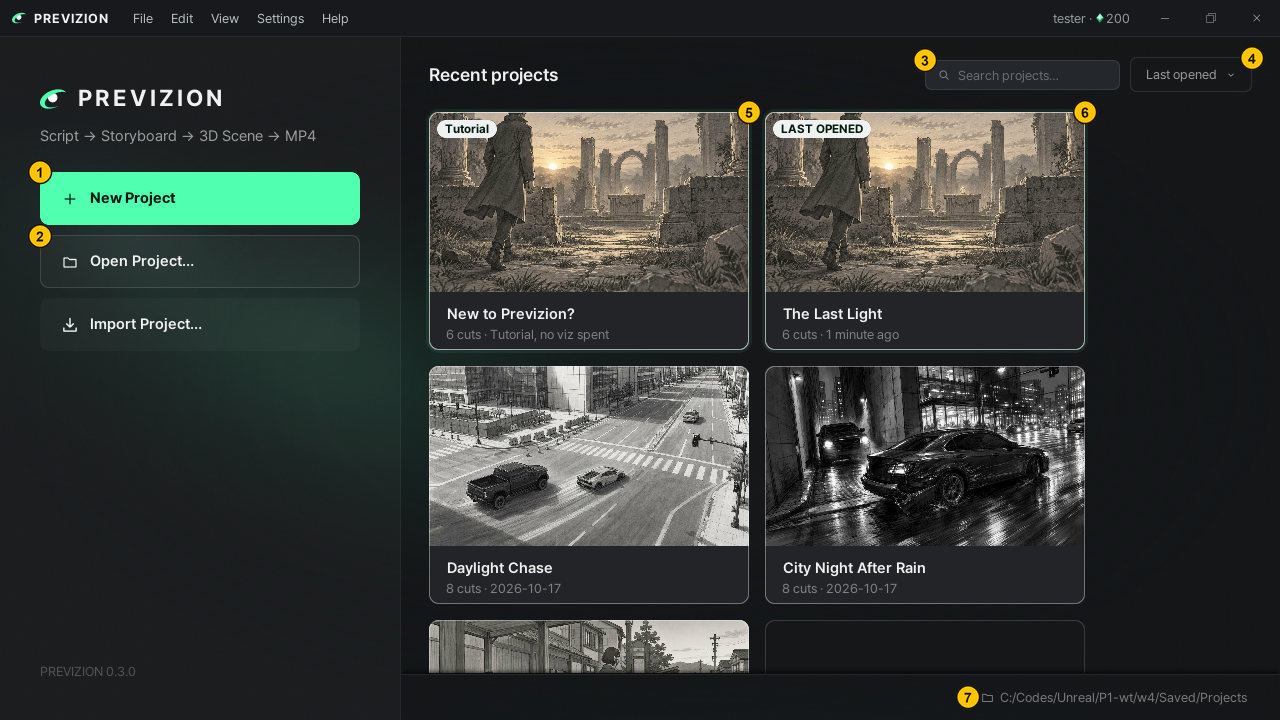
| # | Name | What it does |
|---|---|---|
| ① | New Project | Makes a new project |
| ② | Open Project… · Import Project… | Opens a project folder or a .pvz file that is not in the list |
| ③ | Search projects… | Finds a project by name |
| ④ | Sort | Changes the order of the list |
| ⑤ | Tutorial card | Learn the app with a sample project → Start with the tutorial |
| ⑥ | Project card | Press it to open the project. Press the name to rename it; delete it with the button that appears when you hover over the card |
| ⑦ | Projects folder | Opens the folder your projects are saved in |
Making a new project
- Press New Project on the main screen. With a project open, press Ctrl+N.
- Type a Name. It starts out as the current date and time.
- Press Create, and the new project opens at the Script step.
Opening a project
Press a project card on the main screen. With a project open, pick one from File → Open Recent; to go back to the list, press File → Go to Main. A project opens at the last step you reached.
Renaming · deleting
Press the name on a card on the main screen to rename the project. Its project folder is renamed too. To delete it, hover over the card, press the trash button that appears, and press Delete on the confirmation card.
Deleting removes the project folder and every picture in it, and cannot be undone.
Saving
Save with Ctrl+S. The label beside the project name at the top of the window changes to Saved. If you close the project or quit the app with unsaved changes, it asks whether to save first.
You cannot save while the AI is making a storyboard or scene. Save once it is done.
Going back to an autosave
Use this when your work has disappeared or you want to return to an earlier state. While there are changes, an autosave is kept every five minutes, and also when the AI starts and finishes making or editing a scene.
- Hover over File → Restore from Autosave….
- Pick the time to go back to.
- Press Restore on the confirmation card.
The state before restoring is kept as an autosave first. To undo a restore, restore that autosave.
If the app quit suddenly and there is an autosave newer than your last save, a Recover unsaved work? card appears when you open that project again. Press Recover to go back to that autosave.
Sharing a .pvz file
To move a project to another computer or give it to someone, bundle the project and its pictures into a single .pvz file.
- To send one, press File → Export Project… and choose where to save it. Unsaved changes go in too.
- To receive one, press Import Project… on the main screen or in the File menu and pick the
.pvzfile. - The file is added to the list as a new project and opens right away.
Related: Previzion at a glance · All menus · Viz · saving · what is sent
Anything not covered here: ask in the open chat or write to 17iayn@gmail.com.