 Previzion
Lights · effects · time of day
Light up the scene, add mood with effects such as rain and fog, and turn day into night. All three can change over time within the scene.
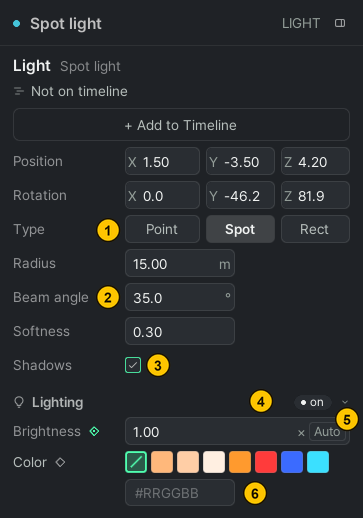
| # | Name | What it does |
|---|---|---|
| ① | Type | Picks the shape the light spreads in |
| ② | Radius · Beam angle · Softness | Set how far the light reaches and how wide it spreads |
| ③ | Shadows | Makes this light cast shadows |
| ④ | Lighting | Shows whether it is on right now |
| ⑤ | Brightness · Auto | Set the brightness, or let it turn on and off with the time of day |
| ⑥ | Color | Picks the color of the light |
Placing a light
Light up a dark spot, or add light such as a street lamp or a stage light.
- In the Object Drawer, pick Light with the filter.
- Drag one into the 3D view: a Point light shines in every direction, a Spot light in one direction, and a Rect light from a wide surface.
- Place it with Move (W); turn a spot or rect light toward what it should light with Rotate (E).
Changing brightness and color
Not only the lights you place but also things that give off light, such as car headlights and street lamps, take their brightness and color from the Lighting section in Details.
- Brightness:
1.00is the default. Type a number or drag the box left and right. - Auto: follows the time of day, turning on in the evening and off in the morning. To throw away a brightness you set and go back to this, press Auto.
- Color: press a swatch or type
#RRGGBB. Hover over a swatch to see its name, such as Tungsten or Amber.
Brightness and color are saved as a key at the moment the playhead is at. Change the value again at another moment and it shifts gradually between the two keys; use this to switch headlights on or change the color of a light. Move or delete the keys by unfolding that thing's row on the timeline.
A newly placed light has a brightness key at 0 seconds. To keep the same brightness through the whole scene, put the playhead at 0 seconds before you change it.
Adding an effect
Add mood with effects such as rain, snow, fog, fire and smoke.
- In the Object Drawer, pick Effects with the filter, and search for names such as rain · snow · fire.
- Drag an effect into the 3D view. It comes out where you drop it.
- Change its strength or extent in the Parameters section of Details (for example RainArea for rain).
An effect starts at the moment the playhead is at. To have it from the start, put the playhead at 0 seconds before you drop it.
Changing when an effect plays
The block on an effect's row on the timeline is the stretch where it plays. Drag the block to move it, and drag its ends to change the start and end. To bring the same effect back, double-click an empty spot on the row to add a block.
Changing the time of day
Turn day into night, or let time pass, as when the sun sets and night falls. The sun, the sky and every light whose brightness is Auto change together.
- Press the name of the Time row on the timeline. The Time page opens in Details.
- Pick one of the Presets, such as golden hour or night, turn the clock dial, or type numbers in the H · M boxes.
- To let time pass, move the playhead to another moment and set the time again. The sun moves between the two keys.
Time only runs forward. Put 06:00 in the key after 22:00 and it passes midnight into the morning.
Related: People · objects · vehicles · Timeline · Examples
Anything not covered here: ask in the open chat or write to 17iayn@gmail.com.