 Previzion
Sending feedback
Send a problem you ran into, a question or a wish straight from the app. Use Help → Send Feedback for words and Help → Rate Previzion for stars. Both also work from the main screen.
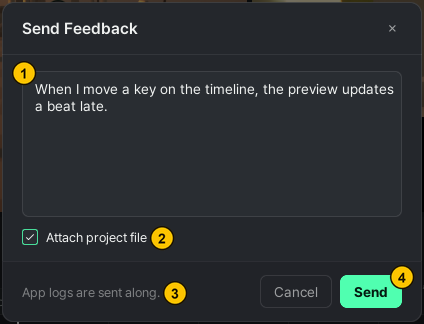
| # | Name | What it does |
|---|---|---|
| ① | Text box | Write what happened or what you want to ask |
| ② | Attach project file | Sends the current project along. Shown only with a project open; on by default |
| ③ | App log note | Tells you the app logs always go along |
| ④ | Send | Sends what you wrote |
Sending feedback
- Press Help → Send Feedback.
- Write what happened or what you want to ask. For an error, say what you were doing when it happened.
- With a project open, Attach project file is on, so the project goes too. Turn it off if you would rather not send it.
- Press Send.
The app logs (the records of this run and the one before) always go along. With the attachment on, the project file goes too, including unsaved changes. Open it from Report on a failed Timeline AI notice and what the AI was working on goes along as well.
If you are not signed in, the card shows an email address instead of the text box. Write to that address. → Signing in
Rating Previzion
Tell us with stars how Previzion went for you.
- Press Help → Rate Previzion.
- Pick the stars. At three or fewer, a box opens for picking what fell short.
- If you have more to say, write it and press Send.
While we are giving Viz for the survey, the card shows how many, and they are added when you send it.
The same rating card sometimes appears on its own after a scene is built. You can close it. A short survey also appears once, the first time the app notices you have used up your Viz.
Related: When something goes wrong · All menus · Viz · saving · what is sent
Anything not covered here: ask in the open chat or write to 17iayn@gmail.com.